Quickstart and tour
Run FleetML with one device on it, then walk through every feature against a fleet of simulated devices. Each block below was run as written, in order.
Get started
Ten minutes, copy and paste, nothing to choose. Each step says what you should see; if you see something else, stop there and look it up in Troubleshooting. Use one terminal (bash or zsh, on macOS or Linux; on Windows, see On Windows) and keep it open until the end.
-
Check the tools. You need Docker (Docker Desktop on a Mac), git, curl and jq (installing them):
docker compose version && git --version && jq --versionYou should see
Docker Compose version(v2 or later) andjq-on the last line. -
Start FleetML. The first start takes a few minutes, to download and build the images:
[ -f deploy/docker-compose.prod.yml ] || { [ -d fleetml ] || git clone https://github.com/fleetml/fleetml.git; cd fleetml; }
[ -f ~/.fleetml.env ] || (umask 077; printf "export JWT_SECRET='%s' SIGNING_MASTER_KEY='%s' FLEETML_ADMIN_KEY='%s' FLEETML_REST_PORT=%s FLEETML_GRPC_PORT=%s FLEETML_DASHBOARD_PORT=%s FLEETML_S3_PUBLIC_PORT=%s S3_PUBLIC_ENDPOINT=localhost:%s\n" "$(openssl rand -base64 32)" "$(openssl rand -base64 32)" "$(openssl rand -hex 32)" "${FLEETML_REST_PORT:-18080}" "${FLEETML_GRPC_PORT:-19090}" "${FLEETML_DASHBOARD_PORT:-80}" "${FLEETML_S3_PUBLIC_PORT:-19100}" "${FLEETML_S3_PUBLIC_PORT:-19100}" > ~/.fleetml.env)
source ~/.fleetml.env
docker compose -f deploy/docker-compose.prod.yml up -d --build && for i in $(seq 90); do curl -sf localhost:${FLEETML_REST_PORT:-18080}/readyz && break; [ $i = 90 ] && echo "Not ready after 3 minutes: see Troubleshooting in docs/ADVANCED.md"; sleep 2; done || echo "Start failed: see Troubleshooting in docs/ADVANCED.md"; echo
curl -sf -H "Authorization: Bearer $FLEETML_ADMIN_KEY" localhost:${FLEETML_REST_PORT:-18080}/api/v1/projects && echo && echo "Dashboard: http://localhost:${FLEETML_DASHBOARD_PORT:-80}  (log in with FLEETML_ADMIN_KEY from ~/.fleetml.env)"
You should see
{"db":"connected","nats":"connected","s3":"connected","status":"ok","version":"<version>"}. The block saved the server's secrets in~/.fleetml.env: keep that file. -
Get the CLI, checked against the release's checksums:
OS=$(uname -s | tr '[:upper:]' '[:lower:]'); ARCH=$(uname -m | sed -e 's/x86_64/amd64/' -e 's/aarch64/arm64/')
curl -fsSLO "https://github.com/fleetml/fleetml/releases/latest/download/fleetml-$OS-$ARCH.tar.gz"
curl -fsSLO https://github.com/fleetml/fleetml/releases/latest/download/SHA256SUMS
grep " fleetml-$OS-$ARCH.tar.gz\$" SHA256SUMS | shasum -a 256 -c
mkdir -p ~/.local/bin && tar -xzf "fleetml-$OS-$ARCH.tar.gz" -C ~/.local/bin fleetml
rm "fleetml-$OS-$ARCH.tar.gz" SHA256SUMS
export PATH="$HOME/.local/bin:$PATH"
fleetml version
You should see
fleetml-<os>-<arch>.tar.gz: OKand✓ fleetml v<version>. -
Publish the sample model and deploy it. The project gets the time in its name, so running the block again makes a new one:
export FLEETML_SERVER=http://localhost:${FLEETML_REST_PORT:-18080} FLEETML_API_KEY=$FLEETML_ADMIN_KEY
P=$(fleetml project create --name "first-$(date +%H%M%S)" -o json | jq -r .id)
fleetml push models/iris/iris_v1.tflite --project $P --model iris --version 1.0.0
V=$(fleetml ver list --model "$(fleetml model list --project $P -o json | jq -r '.[0].id')" -o json | jq -r '.[0].id')
fleetml deploy start "$(fleetml deploy create --project $P --version $V -o json | jq -r .id)"
export FLEETML_ENROLLMENT_KEY=$(fleetml enrollment-key create --project $P --name first-device -o json | jq -r .key)
You should see
✓ Pushed models/iris/iris_v1.tflite → iris v1.0.0 (INT8)and✓ Deployment start → COMPLETE. -
Put a device on it: the Linux device agent in a container on this machine. It registers with the enrollment key from step 4, downloads the model, checks it and makes it active:
ARCH=$(uname -m | sed -e 's/x86_64/amd64/' -e 's/aarch64/arm64/')
mkdir -p fleetml-agent && curl -fsSL "https://github.com/fleetml/fleetml/releases/latest/download/fleetml-agent-linux-$ARCH.tar.gz" | tar -xz -C fleetml-agent
docker run -d --init --name fleetml-agent --add-host=host.docker.internal:host-gateway -e FLEETML_ENROLLMENT_KEY \
  -v "$PWD/fleetml-agent:/opt/fleetml-agent:ro" ubuntu:24.04 sh -c "/opt/fleetml-agent/install.sh /opt/fleetml-agent/fleetml-agent > /dev/null &&
  exec setpriv --reuid=fleetml-agent --regid=fleetml-agent --init-groups /usr/local/bin/fleetml-agent -config /etc/fleetml-agent/config.yaml \
    -server host.docker.internal:${FLEETML_GRPC_PORT:-19090} -download-host-override host.docker.internal:${FLEETML_S3_PUBLIC_PORT:-19100}"
for i in $(seq 60); do docker logs fleetml-agent 2>&1 | grep 'model active' && break; [ $i = 60 ] && echo "No model active after 2 minutes: see Troubleshooting"; sleep 2; done
You should see
msg="model active" model=iris version=1.0.0. On a phone instead: the Android guide (a phone on a USB cable) or the iOS guide (the simulator, then an iPhone). -
See it in the dashboard. This puts the admin key on the clipboard (on a Mac, in WSL, or on Linux with
xclip; elsewhere it prints it) and prints the dashboard's address: open it and paste the key into the login box:printf %s "$FLEETML_ADMIN_KEY" | { pbcopy || clip.exe || xclip -selection clipboard || cat; } 2> /dev/null; echo echo "Dashboard: http://localhost:${FLEETML_DASHBOARD_PORT:-80}"You should see
Dashboard: http://localhost:<port>, and in the browser the Overview page (Dashboard in the menu); Devices lists one device, and Deployments oneCOMPLETEdeployment of iris 1.0.0. -
Clean up, when you are done (after the tour, if you take it: this also stops its simulator and Grafana): the device, the server and all its data, and the saved settings (the CLI stays in
~/.local/bin;downwithout-vwould keep the data):kill $SIM 2>/dev/null; docker rm -f fleetml-agent 2>/dev/null source ~/.fleetml.env && docker compose -f deploy/docker-compose.prod.yml --profile observability down -v && rm -rf fleetml-agent ~/.fleetml.env /tmp/fleetml-sim.logYou should see
Network <stack>_default Removed.
Then: the tour on the same stack, before step 7 (after it, run step 2 again first: it reuses the clone and starts a fresh stack). Other ports, a phone over Wi-Fi, Kubernetes and upgrades: ADVANCED.md.
Run FleetML
Step 2 of Get started is the whole of it: it saves three
generated secrets, the four ports and the address devices download models
from in ~/.fleetml.env, starts the stack with
docker compose -f deploy/docker-compose.prod.yml up -d --build (compose
project fleetml-prod) and waits for /readyz. What the file holds and why
to keep it: the settings file.
Other ports: Other ports. When it never answers:
Troubleshooting. Kubernetes instead:
Kubernetes instead of compose.
On Windows
On Windows, Get started runs in the Ubuntu shell of WSL 2 with Docker Desktop, PowerShell runs the Windows CLI, and a Windows browser shows the dashboard. Steps 1 to 3 are once per machine:
- In PowerShell opened as administrator (right-click, Run as
administrator),
wsl --install -d Ubuntuinstalls WSL 2 and Ubuntu (its current LTS release; the Windows run on GitHub uses the same), before Docker Desktop, which needs WSL 2. Restart Windows if it asks to; WSL 2 also needs virtualization turned on in the firmware (BIOS or UEFI), which most laptops have on, and an error that mentions virtualization or "Virtual Machine Platform" means it is off. Then open the Ubuntu shell from the Start menu and create its user. WSL 2 gives Linux half of the machine's memory by default, which on an 8 GB laptop is about the 2 GB the stack and its two image builds need plus little else; a%UserProfile%\.wslconfigwith[wsl2]andmemory=6GB, thenwsl --shutdown, gives it more. - Install Docker Desktop
and keep Use the WSL 2 based engine on (Settings → General). The
installer needs an administrator; a daily account that is not one must be
in the local
docker-usersgroup to use Docker Desktop (Computer Management, Local Users and Groups, then sign out and in again). - Start Docker Desktop, and in its Settings → Resources → WSL integration,
turn on integration for Ubuntu.
dockerin the Ubuntu shell works only while Docker Desktop is running; "Cannot connect to the Docker daemon" there means it is not, or that the integration was turned on after the shell opened (open a new Ubuntu shell). - Check that Windows keeps none of the four ports for itself (Hyper-V and
WSL reserve ranges that can change at each restart): in PowerShell,
netsh int ipv4 show excludedportrange protocol=tcp. If one of Get started's four ports (listed in Other ports) falls inside a listed range, export another port for it in the Ubuntu shell before step 2, as that section says. Then in the Ubuntu shell:sudo apt update && sudo apt install -y git jq(curlandopensslare already there), thencd ~and steps 1 to 5 of Get started as they are. Keep the clone in the Linux file system (~), not under/mnt/c: files under/mnt/care much slower to read from WSL. -
In a normal PowerShell window (not one opened as administrator, which starts in another folder and, as another account, sees another
Path): the Windows CLI with the PowerShell block of Get the CLI, then the server's address and admin key from the Ubuntu shell's~/.fleetml.env:$env:FLEETML_SERVER = wsl -d Ubuntu --exec bash -c '. ~/.fleetml.env && printf http://localhost:%s ${FLEETML_REST_PORT:-18080}' $env:FLEETML_API_KEY = wsl -d Ubuntu --exec bash -c '. ~/.fleetml.env && printf %s $FLEETML_ADMIN_KEY' fleetml project listYou should see the project of Get started's step 4,
first-<time>. -
The dashboard: step 6 of Get started, in the Ubuntu shell, puts the admin key on the Windows clipboard (
clip.exe) and prints the dashboard's address; open it in a Windows browser and paste the key into the login box. If the page does not open, see Troubleshooting. -
Clean up: step 7 of Get started, in the Ubuntu shell. On the Windows side, in PowerShell, the CLI, its saved settings (with the admin key, if you saved it with
set-key) and its two downloads:Remove-Item -Recurse -Force "$env:LOCALAPPDATA\fleetml", "$env:USERPROFILE\.fleetml", fleetml.zip, SHA256SUMS -ErrorAction SilentlyContinuethen its entry in the user
Path, and the Windows-side clone if you made one for the Android steps (Remove-Item -Recurse -Force <its folder>):[Environment]::SetEnvironmentVariable('Path', ([Environment]::GetEnvironmentVariable('Path', 'User') -split ';' | Where-Object { $_ -and $_ -ne "$env:LOCALAPPDATA\fleetml" }) -join ';', 'User')The images step 2 built live in Docker Desktop and go with
docker image rm fleetml-prod-server fleetml-prod-dashboardor Docker Desktop's Images page; the images it pulled (TimescaleDB, SeaweedFS, NATS and the migration tool, about 2.4 GB) and Docker's build cache stay too, until you remove them on that page (or Troubleshoot, Clean / Purge data). WSL and Docker Desktop stay.
How it fits together, in more detail:
- Ubuntu (WSL 2) shell: the stack, the Run FleetML block, the tour and
the scripts, in a clone under
~in the Linux file system. - PowerShell: the Windows
fleetml.exefor single commands, the dashboard in a Windows browser, and the Android tools (adb, Gradle). - The admin key is created in the Ubuntu shell and saved in
~/.fleetml.envthere; PowerShell reads it with thewslline below, or you paste it once intofleetml config set-key. - Two clones when you build the Android sample app: the one in Ubuntu
for the stack, and one on the Windows side for Gradle, which is slow on a
\\wsl.localhostpath. From Windows in the Android guide takes the sample app onto a phone from PowerShell, step by step.
The server, Postgres, NATS and the object store are Linux containers, and the
quickstart, the tour and the scripts are bash, so on Windows they run in a
WSL 2 shell with Docker Desktop's WSL 2 backend. Docker Desktop runs on 64-bit
Windows 11 23H2 or later and Windows 10 22H2, with WSL 2.1.5 or later; Home
editions run only Linux containers, which is all FleetML uses. See Docker's
system requirements
for the current list.
Docker labels Docker Desktop for Windows on Arm early access, so Arm laptops
are not a tested path. Docker Desktop is free for personal use, education,
non-commercial open source and small businesses; a larger company needs a
paid Docker subscription (Docker's terms).
Without it, Docker Engine installed inside Ubuntu runs the same stack: that
is what the Windows run on GitHub does (.github/windows-run/wsl-setup.sh),
and WSL forwards localhost to Windows, so PowerShell and a Windows browser
reach it. A phone over Wi-Fi then reaches WSL only with its mirrored
networking (networkingMode=mirrored in .wslconfig) or a port proxy,
which CI does not exercise.
Docker Desktop publishes the containers' ports on Windows too, so the
dashboard opens in a Windows browser at http://localhost, and PowerShell
reaches the REST API on localhost too (for example
Invoke-RestMethod "$env:FLEETML_SERVER/readyz" after step 5). The tour below runs only
in the Ubuntu shell, since its blocks are bash and use jq; single CLI
commands, such as fleetml project list or a push, work from PowerShell too
with the CLI from Get the CLI.
PowerShell and the Windows browser need the admin key too: in the Ubuntu shell,
echo $FLEETML_ADMIN_KEY prints it (after source ~/.fleetml.env in a new
one), to paste into $env:FLEETML_API_KEY = '<the admin key>' or the
dashboard's login. Or let PowerShell read it from the saved file:
$env:FLEETML_API_KEY = wsl -d Ubuntu --exec bash -c '. ~/.fleetml.env && printf %s $FLEETML_ADMIN_KEY'
(--exec runs bash directly; without it, Ubuntu's login shell reads the line
first and can replace $FLEETML_ADMIN_KEY with nothing, and
${FLEETML_REST_PORT:-18080} in the server line below with the default port,
whatever port the stack uses. The Windows run
uses the same wsl ... --exec bash -c line, on the file its own script
writes, ~/.fleetml-run.env, rather than this one.)
$env: lasts for that PowerShell window. For every window instead,
fleetml config set-key saves it in %USERPROFILE%\.fleetml\config.yaml
(CONFIG.md): it asks for the key without showing it, or
reads it from the same wsl line, so the key is in no command history:
wsl -d Ubuntu --exec bash -c '. ~/.fleetml.env && printf %s $FLEETML_ADMIN_KEY' | fleetml config set-key
fleetml config set server "http://localhost:$(wsl -d Ubuntu --exec bash -c '. ~/.fleetml.env && printf %s ${FLEETML_REST_PORT:-18080}')"
The second line saves the stack's REST port in effect (the CLI's default is
the quickstart's port), so a new window reaches the same server; after you
move the port (Other ports), run it again. A key
that another server refuses names that server (unauthorized by http://...).
What the Windows run workflow checks
on GitHub's windows-latest runner (a Windows Server; the windows-11-arm
runner has no WSL 2, so there its WSL job ends at once with a
"WSL 2 unavailable" warning and checks only the CLI): the Run FleetML block and tour sections 1 to 3 in
WSL 2 Ubuntu, with Docker Engine installed inside the distribution (Docker
Desktop cannot be installed on the runner) and WSL's own localhost
forwarding; /readyz and fleetml project list from PowerShell against that
server; and the PowerShell block of Get the CLI. In WSL it
builds the CLI from source (the tour's first block) rather than installing
the Linux release as Get started's step 3 does. Docker Desktop itself (steps 1 and 3, the
ports it publishes), the port-80 override, Get started's steps 3 and 5 to 7
in WSL, the Android tools and the firewall rule are not exercised by CI;
this page is how they are done by hand.
Get the CLI
fleetml is a single binary for macOS, Linux and Windows on amd64 and arm64,
attached to every GitHub release
with a SHA256SUMS file:
| OS | Asset | Binary |
|---|---|---|
| Linux | fleetml-linux-amd64.tar.gz, fleetml-linux-arm64.tar.gz |
fleetml |
| macOS | fleetml-darwin-amd64.tar.gz, fleetml-darwin-arm64.tar.gz |
fleetml |
| Windows | fleetml-windows-amd64.zip, fleetml-windows-arm64.zip |
fleetml.exe |
On macOS and Linux (and in WSL), the latest release, checked and put in
~/.local/bin on the PATH, without sudo, is step 3 of
Get started; Installing the tools
has the variants (Linux without Perl, every user of the machine, from
source).
On Windows, in PowerShell, into %LOCALAPPDATA%\fleetml, added to the user's
PATH:
$arch = if ($env:PROCESSOR_ARCHITECTURE -eq 'ARM64') { 'arm64' } else { 'amd64' }
$base = 'https://github.com/fleetml/fleetml/releases/latest/download'
Invoke-WebRequest "$base/fleetml-windows-$arch.zip" -OutFile fleetml.zip -UseBasicParsing
Invoke-WebRequest "$base/SHA256SUMS" -OutFile SHA256SUMS -UseBasicParsing
$want = (Select-String -Path SHA256SUMS -Pattern " fleetml-windows-$arch.zip$").Line.Split(' ')[0]
if ((Get-FileHash fleetml.zip -Algorithm SHA256).Hash -ne $want) { throw 'fleetml.zip does not match SHA256SUMS' }
Expand-Archive fleetml.zip -DestinationPath "$env:LOCALAPPDATA\fleetml" -Force
[Environment]::SetEnvironmentVariable('Path', [Environment]::GetEnvironmentVariable('Path', 'User') + ";$env:LOCALAPPDATA\fleetml", 'User')
$env:Path += ";$env:LOCALAPPDATA\fleetml"
fleetml version
You should see fleetml-windows-<arch>.zip's check pass silently and
✓ fleetml v<version> (Windows PowerShell 5.1 shows the tick as ?). In
Windows PowerShell 5.1, $ProgressPreference = 'SilentlyContinue' first
makes the downloads much faster.
The PowerShell block leaves fleetml.zip and SHA256SUMS in the folder it
ran in; delete them once fleetml version answers. Running it again adds
%LOCALAPPDATA%\fleetml to the user Path a second time, which does no
harm (Settings, System, About, Advanced system settings, Environment
Variables removes the copy). A zip downloaded with a browser instead carries
the mark of the web, which is what brings SmartScreen's prompt (below);
Unblock-File on the zip before Expand-Archive, or on fleetml.exe
after, removes it. Its PATH line writes
the user Path back as a plain string (REG_SZ): a Path that was
REG_EXPAND_SZ, with entries such as %USERPROFILE%\bin, keeps working,
but those entries are stored expanded from then on.
If the first Invoke-WebRequest fails with a secure-channel (SSL/TLS) error
on an older Windows, run [Net.ServicePointManager]::SecurityProtocol = 'Tls12'
first. In Windows PowerShell 5.1, Invoke-WebRequest downloads slowly while
it draws its progress bar; $ProgressPreference = 'SilentlyContinue' first
turns the bar off.
Both binaries and this block are exercised in Windows PowerShell 5.1 on
GitHub's Windows runners by the
Windows run workflow: the amd64
binary on windows-latest, the arm64 binary on windows-11-arm (Windows
on Arm).
fleetml.exe is not code-signed. Started from a terminal as above, it runs
like any console program; a copy downloaded with a browser and started from
Explorer may get SmartScreen's "Windows protected your PC" prompt (More info,
Run anyway), and antivirus, Smart App Control (on a clean install of
Windows 11) or a company's application control may scan or block an unsigned
program, also when it is started from a terminal. The CLI keeps its settings in %USERPROFILE%\.fleetml\config.yaml
(CONFIG.md).
fleetml version prints the release, for example ✓ fleetml v0.10.7. In PowerShell,
point it at the server with the $env:FLEETML_SERVER line of On Windows step 5
and $env:FLEETML_API_KEY = '<the admin key>' (or the wsl line in
On Windows), or once for every window with
fleetml config set-key (it asks for the key) and, if the stack's REST port
is not the default, fleetml config set server http://localhost:<REST port>
(the On Windows block reads it from WSL), which save them in
%USERPROFILE%\.fleetml\config.yaml; then fleetml project list
prints the same projects as in WSL (before the tour, the first-<time> project of Get started's step 4). Pushing
from Windows works too, because Docker Desktop also publishes the object
store's port on Windows. With a clone on the Windows side (which the
Android SDK's Windows steps use anyway), from its folder:
fleetml push models\iris\iris_v1.tflite --project <project ID> --model iris --version 1.0.0;
or with the clone in the Ubuntu file system, which Windows sees under
\\wsl.localhost\Ubuntu (<user> is the Ubuntu user):
fleetml push \\wsl.localhost\Ubuntu\home\<user>\fleetml\models\iris\iris_v1.tflite --project <project ID> --model iris --version 1.0.0
(neither is verified on Windows by CI: the Windows run pushes from Windows
only to a stand-in for the REST API).
Windows PowerShell 5.1, the one built into Windows, drops the inner double
quotes of an argument it passes to a program, so a JSON flag needs them
escaped: --target '{\"app\":\"tour\"}'. PowerShell 7.3 and later pass
--target '{"app":"tour"}' as written; there, do not escape.
$PSVersionTable.PSVersion prints which one a window runs (Windows Terminal
may open either). The wrong form for the version is refused before anything
is created: unescaped in 5.1 with
Error: invalid --target JSON: invalid character 'a' looking for beginning of object key string,
escaped in 7.3 with
Error: invalid --target JSON: invalid character '\\' looking for beginning of object key string.
In Windows PowerShell 5.1 with a console code page other than UTF-8, the
✓ of fleetml version shows as ? in the console, or as Γ£ô when the
output is captured or redirected; the program is the same.
From source, with Go 1.26 or later: go build -o bin/fleetml ./cmd/fleetml
in the repository (it reports its version as dev).
The server image contains the CLI too, so without installing anything,
docker compose -f deploy/docker-compose.prod.yml exec -e FLEETML_API_KEY=$FLEETML_ADMIN_KEY server fleetml project list
runs it next to the server. Every command works that way except
fleetml push: its upload goes to S3_PUBLIC_ENDPOINT, localhost on the model files' port, which inside the
container is not the object store.
Tour
The tour needs a running stack and the CLI: Get started's steps 2 and 3 (if
step 7 cleaned up, run step 2 again: it reuses the clone). It runs from the
repository root, in the same shell as the stack (it
uses FLEETML_ADMIN_KEY), and needs jq and the fleetml CLI on the PATH:
the release from Get the CLI. Without it, build the CLI from
source with Go 1.26 or later and put it on the PATH for this shell:
go build -o bin/fleetml ./cmd/fleetml && export PATH="$PWD/bin:$PATH"
The blocks are written to paste into bash or zsh as they are: what a command
prints is given in the text, not in # comments, which zsh at the prompt
passes to the command as arguments. Point the CLI at the server:
export FLEETML_SERVER=http://localhost:${FLEETML_REST_PORT:-18080} FLEETML_API_KEY=$FLEETML_ADMIN_KEY
fleetml project list
fleetml project list lists the first-<time> project of Get started's
step 4 (No results. on a server where you skipped it). On a server
someone else also tours, add --seed <your name> to both fleetml simulate
lines: the same seed gives the same 20 device identities, which register
into one project only.
Every variable the tour sets (P, V1, EK, SIM and the others) lives in
this shell only, and the simulator that section 2 starts in the background
stops when this shell closes. So keep the shell open from section 2 to the
end. The blocks of sections 1 to 5 end with a line that adds their
variables to ~/.fleetml.env (readable only by you: the enrollment key is
among them; section 5 replaces the simulator's SIM line rather than adding
a second one), so a second shell (another terminal tab, say)
picks the tour up with this, whose first line goes into the clone (from
the folder you ran Get started's step 2 in; already there, it does nothing):
[ -f deploy/docker-compose.prod.yml ] || cd fleetml
source ~/.fleetml.env
export PATH="$HOME/.local/bin:$PATH"
export FLEETML_SERVER=http://localhost:${FLEETML_REST_PORT:-18080} FLEETML_API_KEY=$FLEETML_ADMIN_KEY
fleetml project list
You should see the tour's project, tour, in the list. (If you built the
CLI from source, its export PATH line above instead of the second line.)
If the simulator's shell was closed, start the simulator again there with the
fleetml simulate line of section 2 (the same 20 devices register again),
SIM=$! and that section's last line; pgrep -f 'fleetml simulate' shows
whether one runs.
From Python, the same steps run with the Python client (pip install fleetml);
sections 1 to 3 are written out in the Python client
page.
1. Publish a model
fleetml push creates the model and version if needed, uploads the file
straight to the object store with a presigned URL, and asks the server to
verify it. A project and three versions of the sample Iris classifier
(models/iris):
P=$(fleetml project create --name tour -o json | jq -r .id)
fleetml push models/iris/iris_v1.tflite --project $P --model iris --version 1.0.0
fleetml push models/iris/iris_v2.tflite --project $P --model iris --version 2.0.0
fleetml push models/iris/iris_v2.tflite --project $P --model iris --version 2.1.0
M=$(fleetml model list --project $P -o json | jq -r '.[0].id')
vid() { fleetml ver list --model $M -o json | jq -r --arg v "$1" '.[] | select(.version == $v) | .id'; }
V1=$(vid 1.0.0); V2=$(vid 2.0.0); V21=$(vid 2.1.0)
(umask 077; echo "export P=$P M=$M V1=$V1 V2=$V2 V21=$V21" >> ~/.fleetml.env)
Each push prints three lines: Preparing models/iris/iris_v1.tflite (2.4 KB, sha256:047d185c19fe)...,
then ✓ Pushed models/iris/iris_v1.tflite → iris v1.0.0 (INT8) and a
Variant ID: line: the ID of the file just uploaded (one version can have
several variants, for example INT8 and FP16). If an upload fails (the object
store unreachable, say), run the same push again: a variant that was never
verified is replaced. A new version starts as DRAFT, and stays so in the
CLI and the dashboard while it is deployed: the status (DRAFT, STAGED,
ACTIVE, ARCHIVED) is a label for you, and deployments do not need it.
fleetml push --promote sets ACTIVE and says so (v1.0.0 promoted to
STAGED → ACTIVE), from wherever the version is (a second variant of an
ACTIVE version leaves it as it is); for a version pushed
without it,
fleetml ver promote <version ID> --status STAGED and then
fleetml ver promote <version ID> (ACTIVE is the default; the server
allows DRAFT to STAGED to ACTIVE, one step at a time).
An upload that does not match its declared sha256 is refused and never
reaches a device. This one step uses the REST API with curl, because
fleetml push always declares the file's real sha256: here the declared hash
is all zeros, the real file is uploaded, and the server's check at finalize
refuses it (ZEROS is 64 zeros, a well-formed sha256 that no file has).
H="Authorization: Bearer $FLEETML_API_KEY"
ZEROS=0000000000000000000000000000000000000000000000000000000000000000
OUT=$(curl -s -H "$H" -H 'Content-Type: application/json' -d "{\"quantization\":\"FP16\",\"target_runtime\":\"TFLITE\",\"blob_size_bytes\":$(wc -c < models/iris/iris_v1.tflite | tr -d ' '),\"blob_sha256\":\"$ZEROS\"}" $FLEETML_SERVER/api/v1/versions/$V2/variants)
curl -s -o /dev/null -X PUT --data-binary @models/iris/iris_v1.tflite "$(echo "$OUT" | jq -r .data.upload_url)"
curl -s -X POST -H "$H" $FLEETML_SERVER/api/v1/variants/$(echo "$OUT" | jq -r .data.variant.id)/finalize | jq -c .error
The finalize call answers {"code":"INTEGRITY_ERROR","message":"..."}.
2. A fleet and a rollout
Every device registers into a project with one of its enrollment keys
(fleetml enrollment-key create prints the key once). fleetml simulate takes
it from FLEETML_ENROLLMENT_KEY (--enrollment-key works too, but shows the
key to anyone who lists processes) and runs
devices on the real device protocol: they register with the key, heartbeat,
download and verify what they are assigned, and report telemetry. Here 2.0.0
fails 40% of inferences, 2.1.0 is faster, and each device also reports a week
of past telemetry as a drift baseline:
EK=$(fleetml enrollment-key create --project $P --name tour -o json | jq -r .key)
FLEETML_ENROLLMENT_KEY=$EK fleetml simulate --grpc localhost:${FLEETML_GRPC_PORT:-19090} --devices 20 --label app=tour \
  --error-rate 2.0.0=0.4 --latency 2.1.0=14 --history 168h > /tmp/fleetml-sim.log 2>&1 &
SIM=$!
D1=$(fleetml deploy create --project $P --version $V1 --target '{"app":"tour"}' -o json | jq -r .id)
fleetml deploy start $D1
sleep 5; tail -1 /tmp/fleetml-sim.log
fleetml device list --project $P | head -5
(umask 077; echo "export EK=$EK D1=$D1" >> ~/.fleetml.env; echo "export SIM=$SIM" >> ~/.fleetml.env)
The deployment goes to all devices at once, so it starts as COMPLETE
(✓ Deployment start → COMPLETE), the simulator's last line reads
simulator: iris 1.0.0 on 20, and fleetml device list shows the devices (ID, OS,
RAM, chipset). The simulator keeps running in the background through section
5; kill $SIM in Clean up stops it. Its log is
/tmp/fleetml-sim.log, one file per machine: two tours on one machine at
the same time would write to the same file, and Clean up's rm removes it
for both.
COMPLETE means assigned, not delivered: each device still downloads and
verifies the model. This counts the targeted devices and those that report
the version loaded:
fleetml deploy get $D1 | jq -c .devices
It prints {"loaded":20,"targeted":20} once all of them have. loaded
counts the devices whose last heartbeat reported the version, so it turns one
heartbeat (60 seconds by default; the simulator's devices heartbeat every
second) after a device has the model active, and it is counted each time
you ask: a deployment that a newer one replaced counts down to 0 as its
devices move on.
3. A canary that rolls itself back
A canary of 2.0.0 for 25% of the fleet, with a health gate: more than 5% errors over at least 30 events from the canary cohort rolls it back. Each device is in the cohort or not by a hash of its ID and the deployment's ID, decided on its own and kept for the deployment's life, so the cohort is about 25%: of 20 devices usually 2 to 10. The deploy loop runs every 30 seconds, so the rollback comes within a minute, often within seconds, since the simulator's devices report quickly; the loop below gives up after 5 minutes:
D2=$(fleetml deploy create --project $P --version $V2 --strategy CANARY --target '{"app":"tour"}' \
  --canary-stages '[{"percentage":25,"min_duration":"10m"},{"percentage":100,"min_duration":"0s"}]' \
  --health-gate '{"max_error_rate":0.05,"min_events":30,"on_failure":"ROLLBACK"}' -o json | jq -r .id)
fleetml deploy start $D2
for i in $(seq 30); do grep -q 'iris 2.0.0' /tmp/fleetml-sim.log && break; sleep 1; done
grep 'iris 2.0.0' /tmp/fleetml-sim.log | tail -1
for i in $(seq 60); do [ "$(fleetml deploy get $D2 | jq -r .status)" = ROLLED_BACK ] && break; sleep 5; done
fleetml deploy get $D2 | jq -r .rollback_reason
for i in $(seq 60); do tail -1 /tmp/fleetml-sim.log | grep -q 'iris 1.0.0 on 20$' && break; sleep 2; done
tail -1 /tmp/fleetml-sim.log
(umask 077; echo "export D2=$D2" >> ~/.fleetml.env)
The deployment starts as ROLLING_OUT (✓ Deployment start → ROLLING_OUT),
and the first grep shows the simulator line with the cohort on 2.0.0, such
as simulator: iris 1.0.0 on 15, iris 2.0.0 on 5, even when the rollback
has already come by then. Once the gate trips, the rollback reason reads
error rate ... exceeds threshold 5.00% ... and the simulator is back to
simulator: iris 1.0.0 on 20.
The rollback also creates a deployment that returns the cohort to 1.0.0, and
sends a rollback alert (NATS subject fleetml.alerts.rollback, the
project's alert sinks from the dashboard's Alerts page, and the webhook if
ALERT_WEBHOOK_URL is set). Rolling deployments
(--strategy ROLLING --rolling-config '{"batch_size_percent":20,"batch_interval":"1m"}')
use the same gate; see ROLLOUTS.md.
4. An A/B experiment
Half the fleet runs 1.0.0, half 2.1.0. The test runs once both arms have 300 inferences, usually within a minute; the loop gives up after 5 minutes:
EXP=$(fleetml experiment create --project $P --name "iris 2.1.0 latency" --control $V1 --treatment $V21 --target '{"app":"tour"}' --min-sample-size 300 -o json | jq -r .id)
fleetml experiment start $EXP
for i in $(seq 100); do [ "$(fleetml experiment results $EXP | jq -r .final)" = true ] && break; sleep 3; done
fleetml experiment results $EXP | jq '{control_ms: .control.avg_latency_ms, treatment_ms: .treatment.avg_latency_ms, p_value, recommendation}'
fleetml experiment conclude $EXP --winner $V21
for i in $(seq 60); do tail -1 /tmp/fleetml-sim.log | grep -q 'iris 1.0.0 on 20$' && break; sleep 2; done
tail -1 /tmp/fleetml-sim.log
(umask 077; echo "export EXP=$EXP" >> ~/.fleetml.env)
The experiment is RUNNING once started (✓ Experiment start → RUNNING) and
CONCLUDED at the end. Concluding records the winner and ends the
experiment; it does not deploy anything. On their next heartbeat the
devices go back to what the deployments assign, here 1.0.0, which the drift
step below relies on: the last loop waits for it (up to 2 minutes; a few
seconds with the simulator, whose devices heartbeat every second) and the
simulator's last line reads simulator: iris 1.0.0 on 20 again. To roll the winner out to the whole fleet, deploy it:
fleetml deploy create --project $P --version $V21 --target '{"app":"tour"}'
and fleetml deploy start with the new ID. A p_value of 0 means the p-value is below the
precision of a double; read it as p < 0.0001, which is how the demo and the
dashboard show it. Each device keeps its arm for the experiment's life, and its
telemetry carries the arm ID, so results are per arm even when a device's arm
model changes.
5. Drift
Drift compares the last 24 hours of a version's inference latency and confidence with the 7 days before (PSI). Against the week of history the devices reported, 1.0.0 looks stable:
fleetml drift check $V1
Now the devices get slower:
kill $SIM; sleep 1
FLEETML_ENROLLMENT_KEY=$EK fleetml simulate --grpc localhost:${FLEETML_GRPC_PORT:-19090} --devices 20 --label app=tour --latency 1.0.0=34 > /tmp/fleetml-sim.log 2>&1 &
SIM=$!
(umask 077; grep -v '^export SIM=' ~/.fleetml.env > ~/.fleetml.env.new; echo "export SIM=$SIM" >> ~/.fleetml.env.new; mv ~/.fleetml.env.new ~/.fleetml.env)
sleep 20
fleetml drift check $V1
fleetml drift status $V1
The second check reports latency as CRITICAL, and fleetml drift status
shows the latest result per metric. The drift loop runs every 5 minutes
(DRIFT_TICK_INTERVAL); a change into CRITICAL sends a drift alert.
6. Dashboard
Open http://localhost (with FLEETML_DASHBOARD_PORT moved, on that port) and log in with the admin key, FLEETML_ADMIN_KEY
in ~/.fleetml.env (printf %s "$FLEETML_ADMIN_KEY" | pbcopy copies it on
macOS, see Run FleetML); the dashboard keeps a session
cookie, not the key. Models shows iris with its three versions and
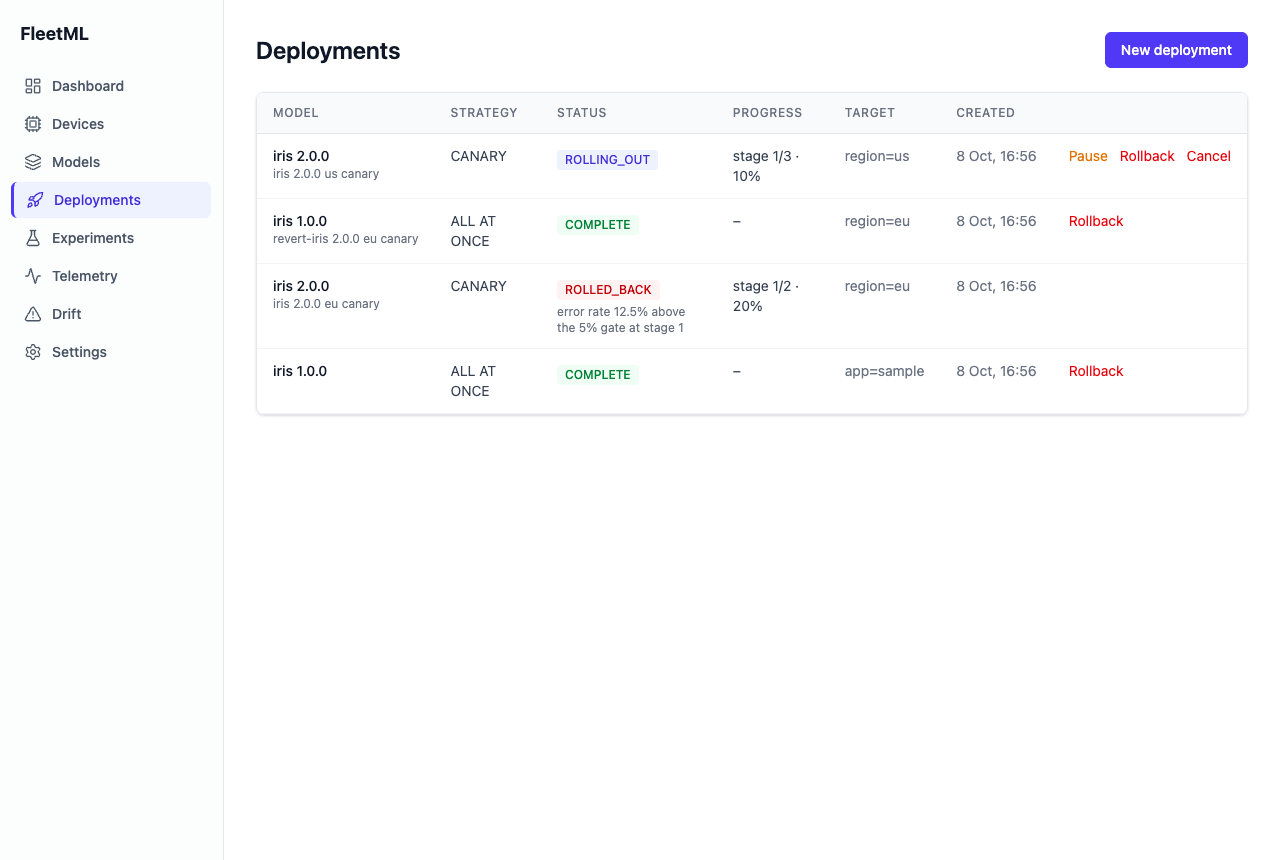
their variants (one FAILED from step 1), Deployments the rolled-back
canary with its reason, Experiments the concluded A/B test with per-arm
results, and Drift the history for 1.0.0. Deployments and experiments can
be created, rolled back, cancelled and concluded there too.
7. Operations
curl -s $FLEETML_SERVER/livez; echo
curl -s $FLEETML_SERVER/readyz; echo
curl -s $FLEETML_SERVER/metrics | grep -E '^fleetml_(deployments|alerts_sent_total|telemetry_events_accepted_total)'
/livez answers {"status":"ok","version":"0.10.7"} and /readyz adds the
three dependencies. The gRPC port also serves the standard
grpc.health.v1 health service.
Prometheus and Grafana with the FleetML dashboard (telemetry lag, redeliveries, request rates, deployments, alerts) run as a compose profile:
source ~/.fleetml.env
docker compose -f deploy/docker-compose.prod.yml --profile observability up -d
Open http://localhost:13000 (FLEETML_GRAFANA_PORT moves it; step 2 does
not save it in ~/.fleetml.env, so export it in each terminal that starts
the profile, or add it to the file as Other ports
shows for the others) in a browser (on its first start Grafana takes
about half a minute to answer): it shows the "FleetML"
dashboard to anonymous visitors, who can only view. To edit, sign in as
admin with the password admin; Grafana then asks for a new password.
source ~/.fleetml.env gives compose the stack's secrets and its saved
S3_PUBLIC_ENDPOINT: without that variable, up -d would recreate the
server with localhost on the default model files' port, and a phone or second machine set up through
a device guide would then fail its downloads. The command runs the one-shot
migrate service again, which finds nothing to do; the server keeps
running and the data stays.
With the dev stack (make dev, server on the host), use
docker compose -f deploy/docker-compose.yml --profile observability up -d;
Prometheus is then on :19091 and scrapes the server on its REST port.
Next: a real device
The stack and the tour's project can stay: a real device enrolls into the same server, with an enrollment key of the project.
- An Android phone: On your phone, over USB first, with your own app or the sample app; from Windows, From Windows.
- An iPhone: Your own app on an iPhone.
- A Linux machine, or a container on this one: the Linux device agent, with Server on another machine for what it needs from this stack.
- A notebook or CI: the same steps with the Python client.
A phone over Wi-Fi or a second machine downloads models from the address in
S3_PUBLIC_ENDPOINT: the download address.
Clean up
To remove only the tour's project from a server you keep, with its models,
devices, deployments and telemetry: kill $SIM; fleetml project delete $P
(it asks for no confirmation and cannot be undone). To remove the whole
stack and its data, the simulator, Prometheus and Grafana included: step 7
of Get started.
down -v deletes the data: every project, model and device, and the admin
key. Without -v only the containers go, and the next up finds the data
again (keep ~/.fleetml.env then: the stack needs the same secrets).
--profile observability also removes Prometheus and Grafana from step 7;
without it they keep running, and so does their network. The rm deletes
the saved secrets, the agent's folder and the simulator's log. The CLI (~/.local/bin/fleetml)
and the two images (docker image rm fleetml-prod-server fleetml-prod-dashboard)
stay until you remove them. Compose needs the secrets for down too: from a
new shell, source ~/.fleetml.env first (Run FleetML).
Upgrading
Moved to Upgrading: the stack, the CLI, the SDKs, the Linux agent and the Helm chart, each on its own.
Contact
- Anything about FleetML: hello@fleetml.dev.
- A security problem: security@fleetml.dev, see SECURITY.md.
- Questions in public: GitHub Discussions.
- Bugs: GitHub Issues, with the FleetML version and the command or log line that shows the problem.